Override materials in the Editor
The Fragments Viewer lets you replace a model material directly in Unreal Editor and see the result immediately. This workflow is editor-only: the override is applied to the imported model in the current editor session and can be saved with the model placement sidecar.
Before and after
Drag the divider to compare the original imported appearance with the material override applied in the Fragments Viewer.
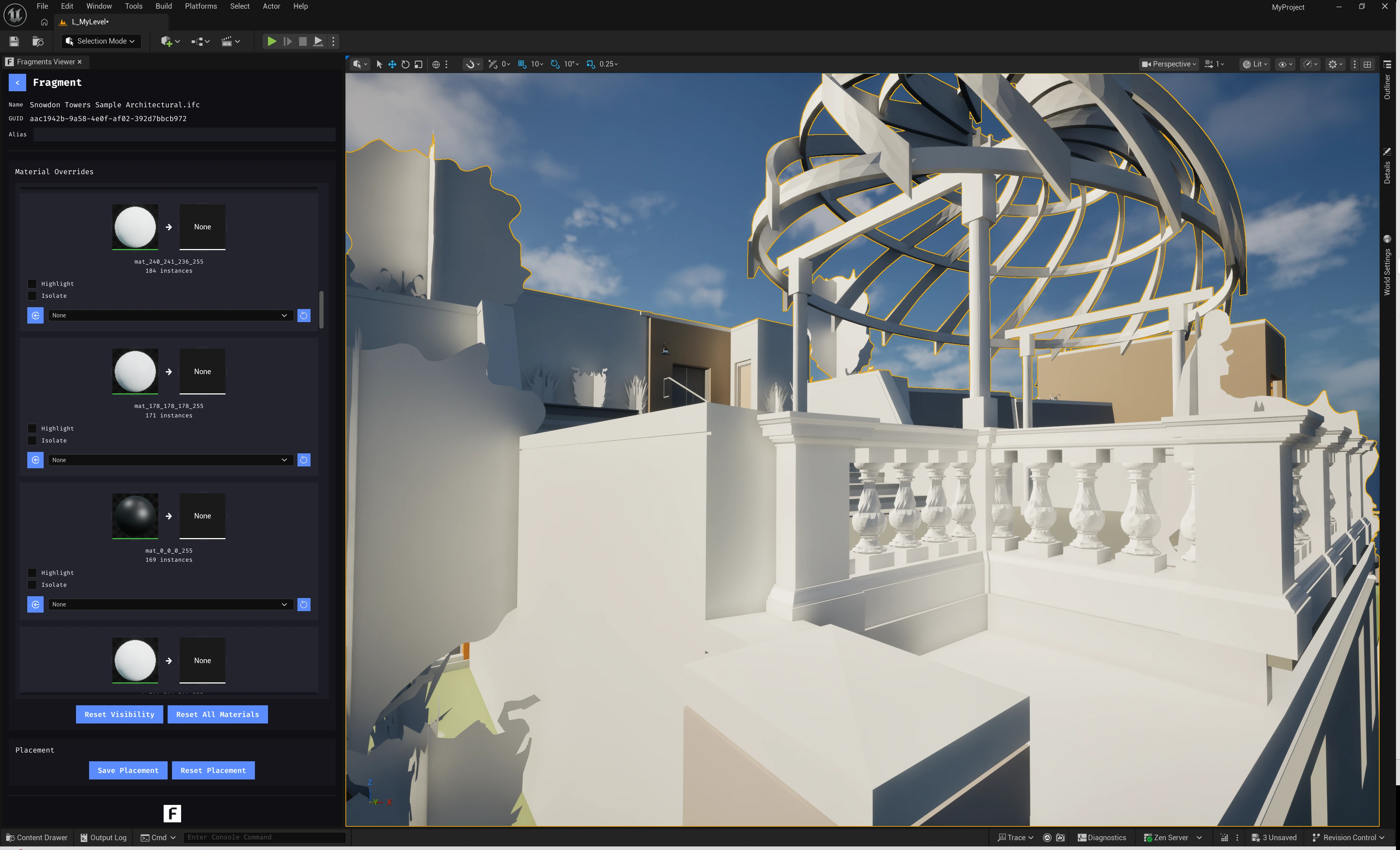
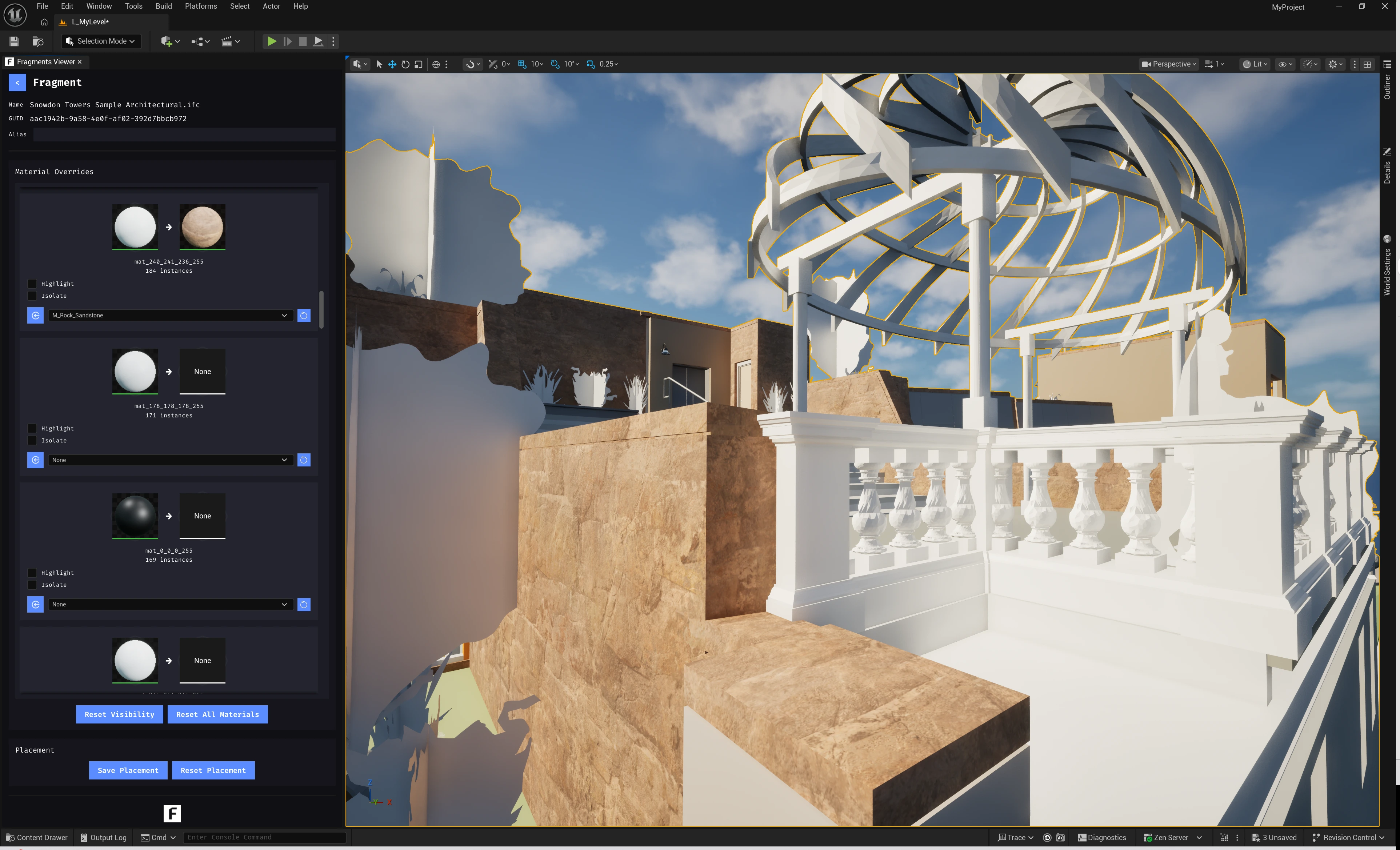
Apply an editor material override
- Open Window → Fragments Viewer and select the imported model from Cached Fragments.
- In the Fragment details view, scroll to Material Overrides.
- Find the source material row you want to change. Each row shows the source material preview and its instance count.
- Use the material picker on the right side of the row to choose a replacement Material or Material Instance from the Content Browser.
- Use Highlight to preview the affected geometry or Isolate to inspect only that material group.
- The viewport updates immediately. Repeat the process for any other source materials.
- Use Reset All Materials to remove the overrides and return to the imported materials.
Save the result
Use Save Placement when you also want to preserve the actor transform. Material replacement entries are stored by their source material key so they can be restored when the cached model is reloaded. Use Reset Placement to clear the saved transform without removing the imported model.
For the underlying actor API, see AFragment. For runtime loading, see Upload a model at runtime.